
更改应用的数据
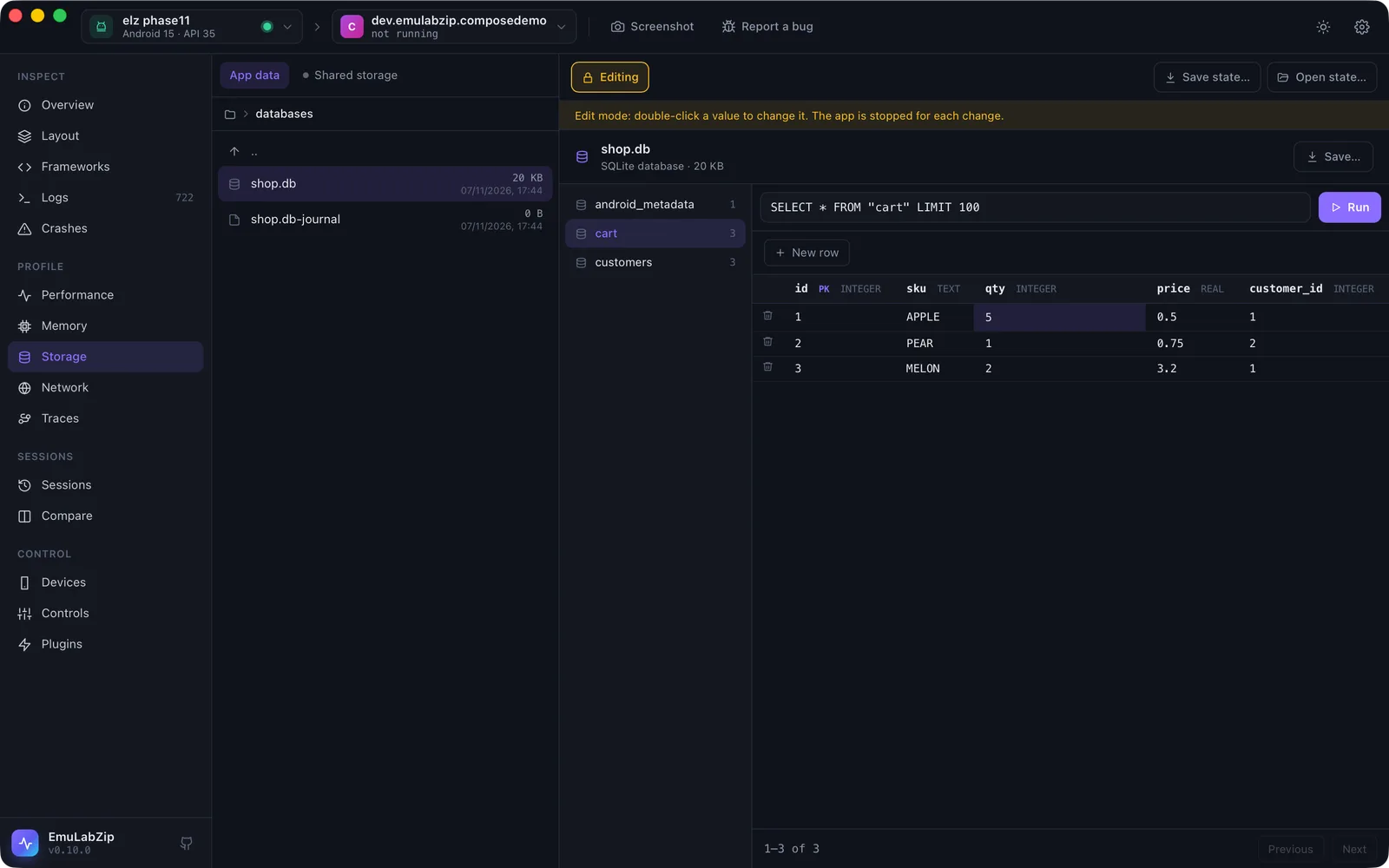
在你打开 Edit 之前,Storage 是只读的。编辑会更改设备上应用的真实文件,因此 它的设计非常谨慎:每次更改都会先询问、停止应用、保留被替换的文件、读回新文件 进行检查,并且可以撤销。
可以更改什么#
| 文件 | 桌面端 | 命令行 |
|---|---|---|
| SQLite 行 | 双击单元格;New row;行上的垃圾桶 | edit cell、edit insert、edit delete |
| SharedPreferences | 双击值;New key;垃圾桶 | edit pref-set、edit pref-remove |
| 属性列表(iOS) | — | edit plist-set、edit plist-remove |
DataStore、MMKV、AsyncStorage、Realm 和 Core Data 是只读的:它们的格式不会被写回。
emulabzip edit cell com.example.shop databases/shop.db -t customers --rowid 1 --text name=Ana --set vip=1 --yes
emulabzip edit insert com.example.shop databases/shop.db -t customers --set name=Bo --yes
emulabzip edit delete com.example.shop databases/shop.db -t cart --pk id=3 --yes
emulabzip edit pref-set com.example.shop shared_prefs/settings.xml theme dark --yes
emulabzip edit pref-set com.example.shop shared_prefs/settings.xml launches 4 --as int --yes
emulabzip edit plist-set com.example.shop Library/Preferences/com.example.shop.plist flags/beta true --as boolean --yes
emulabzip edit undo <data folder>/states/edits/<folder> --yes # the folder the edit printed看起来像整数或小数的值会按数字处理,否则按文本处理;--text column=value 强制按文本,
--null column 设为 NULL。集合类偏好设置的条目用逗号分隔。每条命令都需要 --yes。
一次编辑做了什么#
- 在触碰设备之前检查更改:表和列存在,恰好有一行匹配该键,值 具有所要求的类型。
- 停止应用,使其在退出时不会覆盖这次更改。
- 将即将被替换的字节保存在备份文件夹中(EmuLabZip 数据文件夹里的
states/edits/)。 - 写入:对于 SQLite,会拉取数据库及其预写日志,在副本上于一个事务内进行更改,
该事务必须恰好更改一行,并开启外键,日志会合并进文件
(
wal_checkpoint(TRUNCATE)),然后推送文件,并删除设备上的-wal和-shm,以免旧日志 被重放到新文件之上。 - 读回文件。如果与写入的内容不一致,就会放回旧文件,并且这次编辑失败。
行通过 rowid 找到,对于以 WITHOUT ROWID 创建的表则通过其主键找到。没有可用键的表
会显示原因,并且无法编辑。视图无法编辑。
在 Android 上,文件通过 run-as 写入,因此仍以该应用为所有者;在 iOS 上,这是主机文件写入,
会拒绝符号链接指向容器之外的路径。
撤销#
桌面应用有 Undo last change。在命令行中,每次编辑都会打印要交给 edit undo 的文件夹。撤销
会停止应用,并把该次编辑的每个文件放回原处,如果文件原本不存在则将其删除。
对于更大的改动,请先保存应用的状态。
面向助手#
编辑不通过 MCP 提供。