
Customizing the layout
Everything in EmuLabZip that is split in two can be resized, and the rest can be tuned in Settings (⌘,).
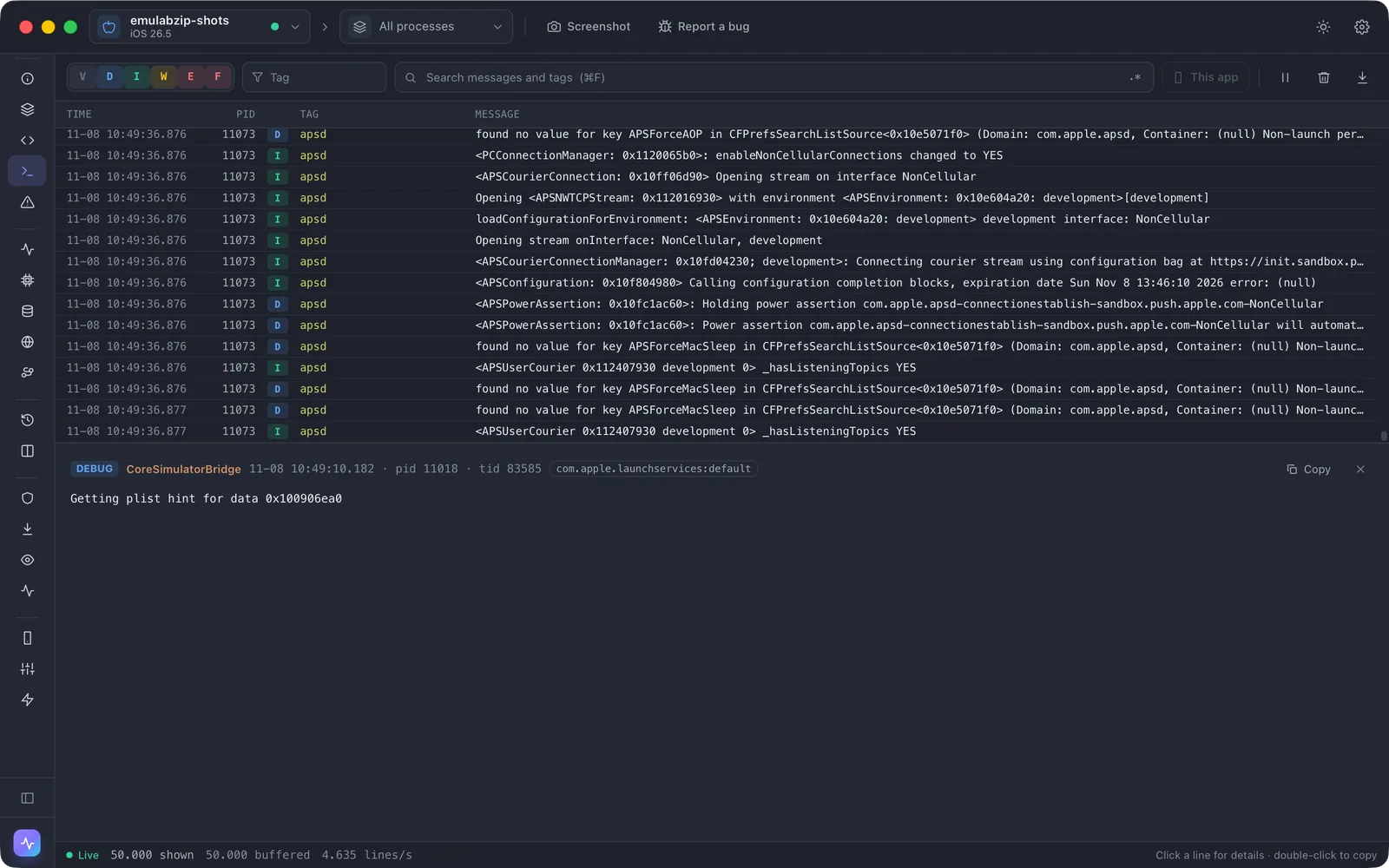
Resizing panes#
Drag the line between two panes to change their sizes. Double-click it to restore its size, or focus it with Tab and use the arrow keys (Shift for bigger steps). Sizes are remembered for each pane, and kept inside the window when it gets smaller.
This works for the sidebar, the lists and detail panes of Storage, Network, Logs, Layout, Sessions, Crashes, Traces, Audit, Plugins, Memory and Visual, and the table lists of the database and rows viewers.
Settings → Layout → Reset all pane sizes restores every one.
The sidebar#
- Collapse it to icons with ⌘\ or the button at its foot. Hover an icon for its name.
- Customize (also at its foot) lets you drag entries into another order within their section, and click one to hide or show it. Reset puts the original order and entries back.
Page width#
Overview, Performance, Controls, Frameworks, Compare, Devices and Audit are centred pages. Settings → Layout → Page width makes them narrow, wide (the default) or full width.
Text, density and scale#
In Settings → Appearance → Fine-tune:
- Text size, 85% to 140%, scales all text.
- Density (compact, normal, roomy) changes how much room padding and gaps take.
- Interface scale, 80% to 140%, zooms everything. ⌘+ and ⌘- change it a step, ⌘0 restores it.
- Roundness and the fonts can be set once, over every theme's own.
The colours and fonts of a theme itself are in Themes.
The window#
On macOS the window buttons are centred in the toolbar at any scale.